Table of contents
In most cases, when a product is on sale, WooCommerce displays the (crossed-out) regular price alongside the price on sale. This is a great way for customers to see how much they’re saving on a product.
One of my pet peeves about WooCommerce is that, when it displays a price range (which can happen in variable and grouped products), it only shows the final (on sale) price.
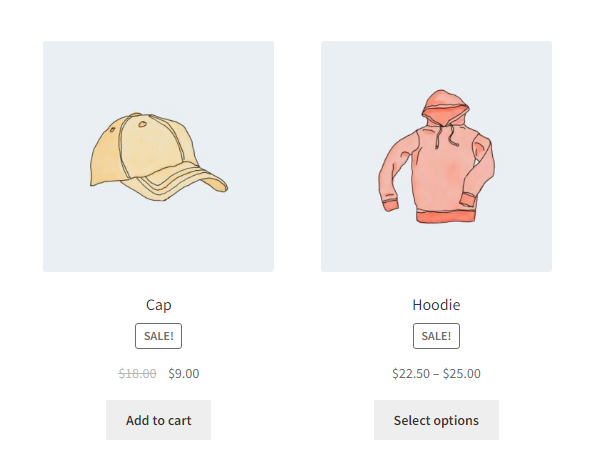
I get the reason behind it. Showing two price ranges one alongside another results in a very long, aesthetically-unappealing price tag.
But for me, there are other options that are preferable to hiding the regular price altogether (such as tweaking the result with CSS).
If you, like me, would like to modify WooCommerce’s default behavior to display the regular price anyway, keep reading. You can also find the final result on Github.
This tutorial assumes that you have prior knowledge of:
Locating where does WooCommerce create the price range markup
The WooCommerce template files where a product’s price tag is displayed are:
- templates/loop/price.php : Template file for the price tag when a product is displayed in a loop such as in the shop page, a product category, in the related products blocks, etc.
- templates/single-product/price.php : Template file for the price tag in the single product page.
As you can see, both template files use the WC_Product::get_price_html() method to display the price tag. WC_Product is an abstract class, meaning that it’s not supposed to be used as it is, but to serve as a base for other classes.
Each product type (simple, grouped, variable, virtual, external, and downloadable) has its own class based on the WC_Product class, and all of them but grouped and variable products use the parent’s get_price_html() method as is.
Grouped and variable products overwrite the default way of displaying the price tag because they need to account for the case of having to display a price range.
WC_Product_Grouped::get_price_html(): Displays a price range from the cheapest to the most expensive product in the group.WC_Product_Variable::get_price_html(): Displays a price range from the cheapest possible variation to the most expensive possible variation.
In both cases, if the lower and higher ends of the range are equal, it displays a simple price tag instead of a range. This price tag would also be formatted the usual way when the product is on sale, including the crossed-out regular price.
Altering the price tag
As we can see in both of these methods, the wc_format_price_range() function is used to create the price range markup. Initially, the woocommerce_format_price_range filter that we can find inside this function seems like a good contender to alter the price tag.
However, there are some issues with this approach:
- The product object is needed to get the regular price range of the product, but the filter doesn’t pass the product object as a parameter. While in the WooCommerce plugin’s code it is always used in a context where we can get the product by stating
global $productin our filtering function, one should anticipate the case of the function being used to format a range between just two figures. - It would be desirable to use the
wc_format_price_range()function to format the regular price range too. If we called this function from withing our filtering function, it would cause an infinite loop.
Both of these issues can easily be solved (the first by checking if we actually have access to the global $product object, and the second by temporarily removing the filter before calling wc_format_price_range() from within our function).
However, my preferred method is to use the woocommerce_variable_price_html and woocommerce_grouped_price_html filters, that pass the product object as a parameter and don’t require workarounds.
I’ve prefixed my functions and custom fields with ssanzdev_ to avoid collisions. Of course, rename those to whatever you want; or even better, use namespaces as in the GitHub example.
Filtering the variable product’s price tag
We will copy the content of the WC_Product_Variable::get_price_html() function, with the following changes:
- We will only alter the price tag if the product is on sale.
- We don’t need to check if the
$prices['price']array is empty, as thewoocommerce_variable_price_htmlfilter is only applied if the product has a price. - Variable products don’t always display a price range. If all the variations have the same price, it displays a normal price tag. If neither the regular and the sale price are a range, the price tag displays the regular price crossed out as it does in other product types. If this is the case, we won’t modify WooCommerce’s default behavior. However, if either the regular price or the sale price are a range, we will modify its behavior as to include the regular price in the price tag, which WooCommerce doesn’t do.
- We will also check that the regular and sale price ranges are distinct from each other. If a variation is on sale, but it’s sale price is not as low as the cheapest variation, or as high as the most expensive variation, we would end up with two identic price ranges, which could be confusing for the user.
- We will create two price tags, one for the regular price and one for the sale price. At this point we assume that either the regular price or the sale price can be a range, and format them accordinly if applicable using the
wc_format_price_range()function. - Finally, we pass our two price tags through the
wc_format_sale_price()function so it creates the price tag markup. It is prepared to deal with both numbers and strings, so it shouldn’t have any problem formatting our price ranges.
function ssanzdev_variable_product_tag_sale( $price_html, $product )
{

    // Apply only to products on sale.
    if ($product->is_on_sale() ) {

        $prices = $product->get_variation_prices(true);

        // No need to check if $prices['price'] is empty as in the original function,
        // as the woocommerce_variable_price_html filter is only applied if $prices
        // is not empty.
        $min_sale_price = current($prices['sale_price']);
        $max_sale_price = end($prices['sale_price']);
        $min_reg_price = current($prices['regular_price']);
        $max_reg_price = end($prices['regular_price']);

        if (
            // If either the regular price or the sale price are a range,
            // modify WooCommerce's behavior to include the regular price in the
            // tag.
            ( $min_sale_price !== $max_sale_price || $min_reg_price !== $max_reg_price )
            // Check that the regular and sale price ranges are distinct from each
            // other.
            && ( $min_sale_price !== $min_reg_price || $max_reg_price !== $max_sale_price )
        ) {

            // Format differently depending on price being a range or not.
            if ($min_reg_price !== $max_reg_price ) {
                $regular_price = wc_format_price_range($min_reg_price, $max_reg_price);
            } else {
                $regular_price = $min_reg_price;
            }

            if ($min_sale_price !== $max_sale_price ) {
                $sale_price = wc_format_price_range($min_sale_price, $max_sale_price);
            } else {
                $sale_price = $min_sale_price;
            }

            // Aside from formatting numbers, the wc_format_sale_price() function is
            // prepared to deal with strings, such as our price range.
            $price_html = wc_format_sale_price($regular_price, $sale_price);

        }

    }

    return $price_html;

}
add_filter('woocommerce_variable_price_html', 'ssanzdev_variable_product_tag_sale', 10, 2);
Filtering the grouped product’s price tag
The process for grouped products is very similar. We will copy the content of the WC_Product_Grouped::get_price_html() and make some modifications to it.
The main difference with grouped products is that, unlike with variable products, don’t have a handy function such as WC_Product_Variable::get_variation_prices() to return us the maximum and minimum prices; all calculations are done in the WC_Product_Grouped::get_price_html() method, and it only calculates the default price (the regular price in products not on sale, and the sale price in products on sale).
Since we will need to repeat the process twice (once to get the regular price range and once to get the sale price range), and in order to not duplicate very similar functionality, I’ve decided to split the process into two functions.
Calculating a grouped product’s price range
Here is the process that calculates a grouped product‘s price range.
- We indicate as a parameter if we want to get the regular, sale, or default price range.
- It returns an array with the minimum and maximum values of the range.
- If the product is not a grouped product, or we request the sale price of a product that is not on sale, the array is returned empty.
- As in the original
WC_Product_Grouped::get_price_html()method, we will need to take the taxes configuration into account when calculating the price range.
function ssanzdev_get_grouped_product_prices( $product, $price_type = '' )
{

    $price_range = array(
    'min' => '',
    'max' => ''
    );

    // Checking if the product is a grouped product.
    if ($product->is_type('grouped') ) {

        // Making sure that the product is on sale if we want to get the sale price
        // (grouped products are flagged as on sale if any of its children are on sale).
        // If the product doesn't meet these requirements, we will return the
        // $price_range array with the values left empty.
        if ('sale' !== $price_type || ( 'sale' === $price_type && $product->is_on_sale() ) ) {

            // Checking if we are supposed to display the price including taxes or
            // not in our shop.
            $tax_display_mode = get_option('woocommerce_tax_display_shop');
            // Initializing the array where we are going to store each child's
            // price.
            $child_prices = array();
            // Getting the group's children products.
            $children = array_filter(
                array_map('wc_get_product', $product->get_children()),
                'wc_products_array_filter_visible_grouped'
            );

            //For each product in the group
            foreach ( $children as $child ) {

                // Get the specified product's price.
                switch( $price_type ) {
                case 'regular':
                    $child_price = $child->get_regular_price();
                    break;
                case 'sale':
                    // Check if this specific child product is on sale, if not return
                    // its regular price.
                    if ($child->is_on_sale() ) {
                        $child_price = $child->get_sale_price();
                    } else {
                        $child_price = $child->get_regular_price();
                    }
                    break;
                default:
                    $child_price = $child->get_price();
                    break;
                }

                if ('' !== $child_price ) {
                    // Calculate the final child product's price depending on
                    // whether we are supposed to display the price including taxes
                    // or not.
                    // The reason why we need to send the price as an argument to
                    // the wc_get_price_including_tax() function is that, if we
                    // leave it blank, it will use the product's default price for
                    // its calculations.
                    $args = array( 'price' => $child_price );

                    if('incl' === $tax_display_mode ) {
                        $child_prices[] = wc_get_price_including_tax($child, $args);
                    } else {
                        $child_prices[] = wc_get_price_excluding_tax($child, $args);
                    }
                }

            }

            // Getting the minimum and maximum prices in the group.
            if (! empty($child_prices) ) {
                $price_range['min'] = min($child_prices);
                $price_range['max'] = max($child_prices);
            }

        }

    }

    return $price_range;

}
Modifying the grouped product’s price tag
Then there’s the function that actually alters the price tag, the process being very similar to that of the variable price tag.
function ssanzdev_grouped_product_tag_sale( $price_html, $product )
{

    // Apply only to products on sale.
    if ($product->is_on_sale() ) {

        // Get both the regular and sale maximum and minimum prices.
        $price_range_regular = ssanzdev_get_grouped_product_prices($product, 'regular');
        $price_range_sale = ssanzdev_get_grouped_product_prices($product, 'sale');

        if (
            // If either the regular price or the sale price are a range,
            // modify WooCommerce's behavior to include the regular price in the
            // tag.
            ( $price_range_regular['min'] !== $price_range_regular['max'] || $price_range_sale['min'] !== $price_range_sale['max'] )
            // Check that the regular and sale price ranges are distinct from each
            // other.
            && ( $price_range_regular['min'] !== $price_range_sale['min'] || $price_range_regular['max'] !== $price_range_sale['max'] )
        ) {

            // Format differently depending on price being a range or not.
            if ($price_range_regular['min'] !== $price_range_regular['max'] ) {
                $regular_price = wc_format_price_range($price_range_regular['min'], $price_range_regular['max']);
            } else {
                $regular_price = $price_range_regular['min'];
            }

            if ($price_range_sale['min'] !== $price_range_sale['max'] ) {
                $sale_price = wc_format_price_range($price_range_sale['min'], $price_range_sale['max']);
            } else {
                $sale_price = $price_range_sale['min'];
            }

            // Aside from formatting numbers, the wc_format_sale_price() function is
            // prepared to deal with strings, such as our price range.
            $price_html = wc_format_sale_price($regular_price, $sale_price);

        }

    }

    return $price_html;

}
add_filter('woocommerce_grouped_price_html', 'ssanzdev_grouped_product_tag_sale', 10, 2);
We should have now both prices showing in our variable and grouped products on sale!

Special case: Free grouped products
Additionally, there’s a case in grouped products where we may be interested in showing the crossed-out regular price, but WooCommerce skips the woocommerce_grouped_price_html filter. If after putting a product on sale, both the minimum and maximum prices are zero, it displays a “Free!” message that goes through the woocommerce_grouped_free_price_html filter instead.
If we want to display the regular price in this case too, we need to do as follows.
- Check if the product is on sale.
- Using our
get_grouped_product_prices()function, get the regular price of the product. - If the product was not free before applying the discount, display the regular price crossed out alongside the “Free!” message.
function ssanzdev_grouped_product_tag_sale_free( $price_html, $product )
{

    // Apply only to products on sale.
    if ($product->is_on_sale() ) {

        // We know the product on sale is free. Let's check if the regular price was
        // also free.
        $price_range_regular = ssanzdev_get_grouped_product_prices($product, 'regular');

        // Display regular price only if product was not free before sale.
        if ($price_range_regular['max'] !== 0 ) {

            // Format differently depending on the regular price being a range or
            // not.
            if ($price_range_regular['min'] !== $price_range_regular['max'] ) {
                $regular_price = wc_format_price_range($price_range_regular['min'], $price_range_regular['max']);
            } else {
                $regular_price = $price_range_regular['min'];
            }

            // Aside from formatting numbers, the wc_format_sale_price() function is
            // prepared to deal with strings, such as our price range and our
            // "Free!" tag.
            $price_html = wc_format_sale_price($regular_price, __('Free!', 'woocommerce'));

        }

    }

    return $price_html;

}

add_filter('woocommerce_grouped_free_price_html', 'ssanzdev_grouped_product_tag_sale_free', 10, 2);

Remember that you can find the whole result of this tutorial on GitHub.